

A container registry serves as a centralized system for storing and managing container images. In today’s fast-paced containerized application development landscape, speed, security and control over container workflows using a robust container registry are critical. While both cloud-based container registries, such as Google Container Registry (GCR), Azure Container Registry (ACR), and Amazon Elastic Container Registry (ECR), and third-party services like DockerHub, GitHub / GitLab Container Registry, and JFrog Container Registry, offer convenience, organizations often face challenges with latency, external dependencies, and security compliance constraints.
This blog post describes the process of deploying Harbor and setting it up as a local container registry within HPE Private Cloud AI. By using Harbor as a local container registry, organizations gain faster image access, reduced dependence on external networks, improved security, and a tailored registry environment that aligns with internal compliance and governance needs.
HPE Private Cloud AI
HPE Private Cloud AI (HPE PCAI) offers a comprehensive, turnkey AI solution designed to address key enterprise challenges, from selecting the appropriate large language models (LLMs) to efficiently hosting and deploying them. Beyond these core functions, HPE PCAI empowers organizations to take full control of their AI adoption journey by offering a curated set of pre-integrated NVIDIA NIM LLMs, along with a powerful suite of AI tools and frameworks for Data Engineering, Analytics, and Data Science.
The Import Framework in HPE PCAI further enhances flexibility by enabling organizations to integrate their own applications or third-party solutions alongside pre-installed components, accommodating a wide range of enterprise-specific use cases.
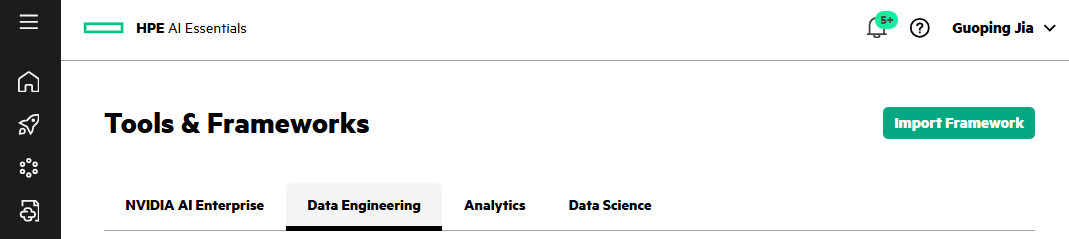
This blog post guides you through the step-by-step process of deploying the open-source Harbor into HPE PCAI using the Import Framework. Once deployed and configured, Harbor can serve as a local container registry within HPE PCAI. With key features such as policy management, role-based access control (RBAC), security scanning, and image signing, Harbor strengthens container lifecycle security and governance.
Prerequisites
Before starting, make sure that Docker Engine, version 28.1.1 or later, is installed, including the default docker CLI, which will be used for building and pushing images.
The following sections show application deployment details using the kubectl CLI and kubeconfig to access the HPE PCAI Kubernetes (K8s) cluster. However, direct cluster access via kubectl is generally not required.
Harbor
Harbor is an open-source container registry designed for cloud-native environments like K8s. It securely stores and manages container images with policies and RBAC, ensures images are scanned and free from vulnerabilities, and signs images as trusted.
The following sections describe in detail how to deploy Harbor into HPE PCAI using the Import Framework. You will learn how to create a private project, create users and assign them with specific role permissions, and push images using Harbor credentials. Used as a local image registry within HPE PCAI, Harbor helps ensure your container images remain secure and well governed.
Harbor deployment via HPE PCAI Import Framework
Based on the latest Helm charts from the official Harbor site, the following YAML manifest files have been added under templates/ezua/ directory:
- virtualService.yaml: Defines an Istio VirtualService to configure routing rules for incoming requests.
- kyverno-cluster-policy: A Kyverno ClusterPolicy that automatically adds required labels to the deployment.
Additionally, the default values.yaml file has been modified with the following updates:
- introduced an ezua section to configure the Istio Gateway and expose the endpoint:
      ezua:

        virtualService:
          endpoint: "harbor.${DOMAIN_NAME}"
          istioGateway: "istio-system/ezaf-gateway"
- expanded Harbor registry storage from the default 5G to 500G:
persistence.persistentVolumeClaim.registry.size = 500G
These updates are implemented in the revised Harbor Helm charts, available in the GitHub repository pcai-helm-examples. With these customizations, Harbor can be easily deployed into HPE PCAI using the Import Framework:
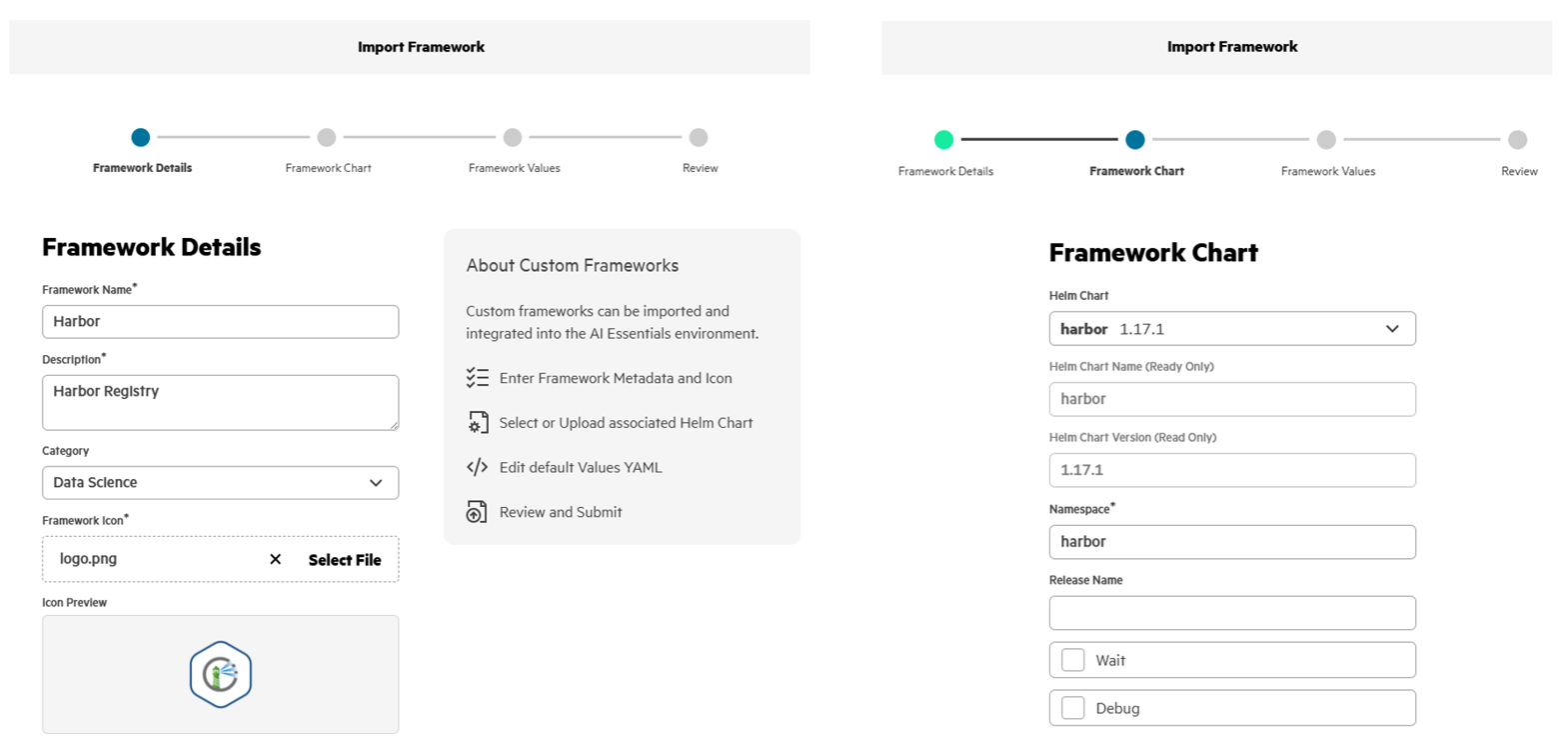
Harbor UI access via its endpoint
After Harbor is deployed via the HPE PCAI Import Framework, an Imported Harbor tile appears under Tools & Frameworks on the Data Science tab. A service endpoint, e.g., https://harbor.ingress.pcai0104.ld7.hpecolo.net, is automatically configured and exposed, providing access to Harbor.
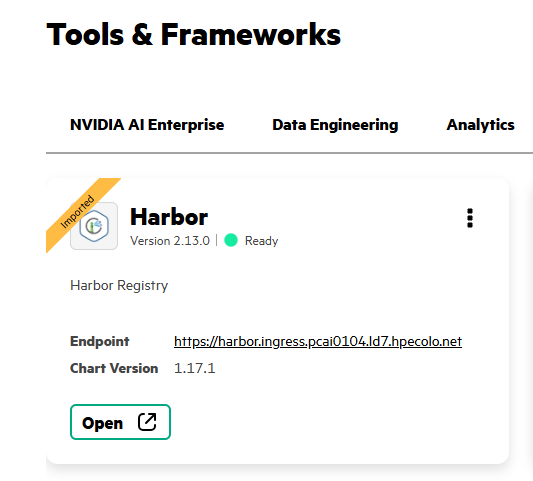
Click the Open button, or paste the endpoint URL into your browser, to launch the Harbor login page:
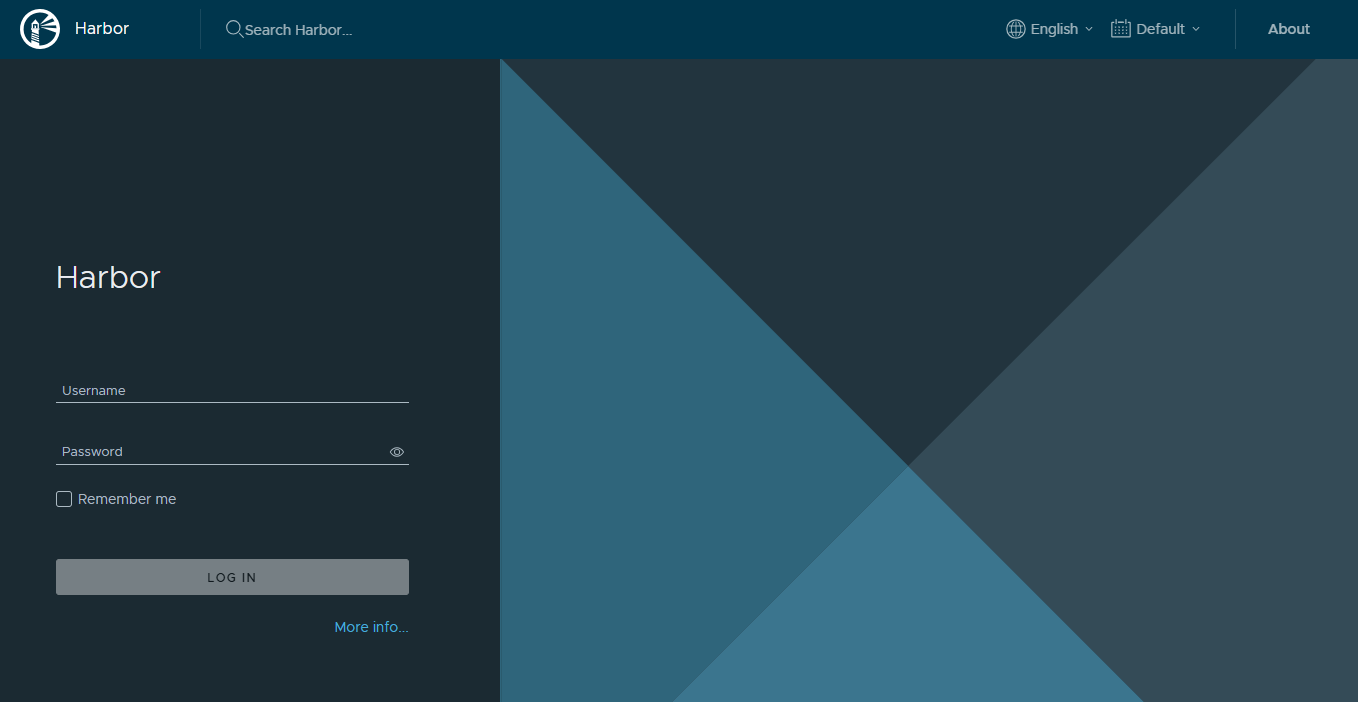
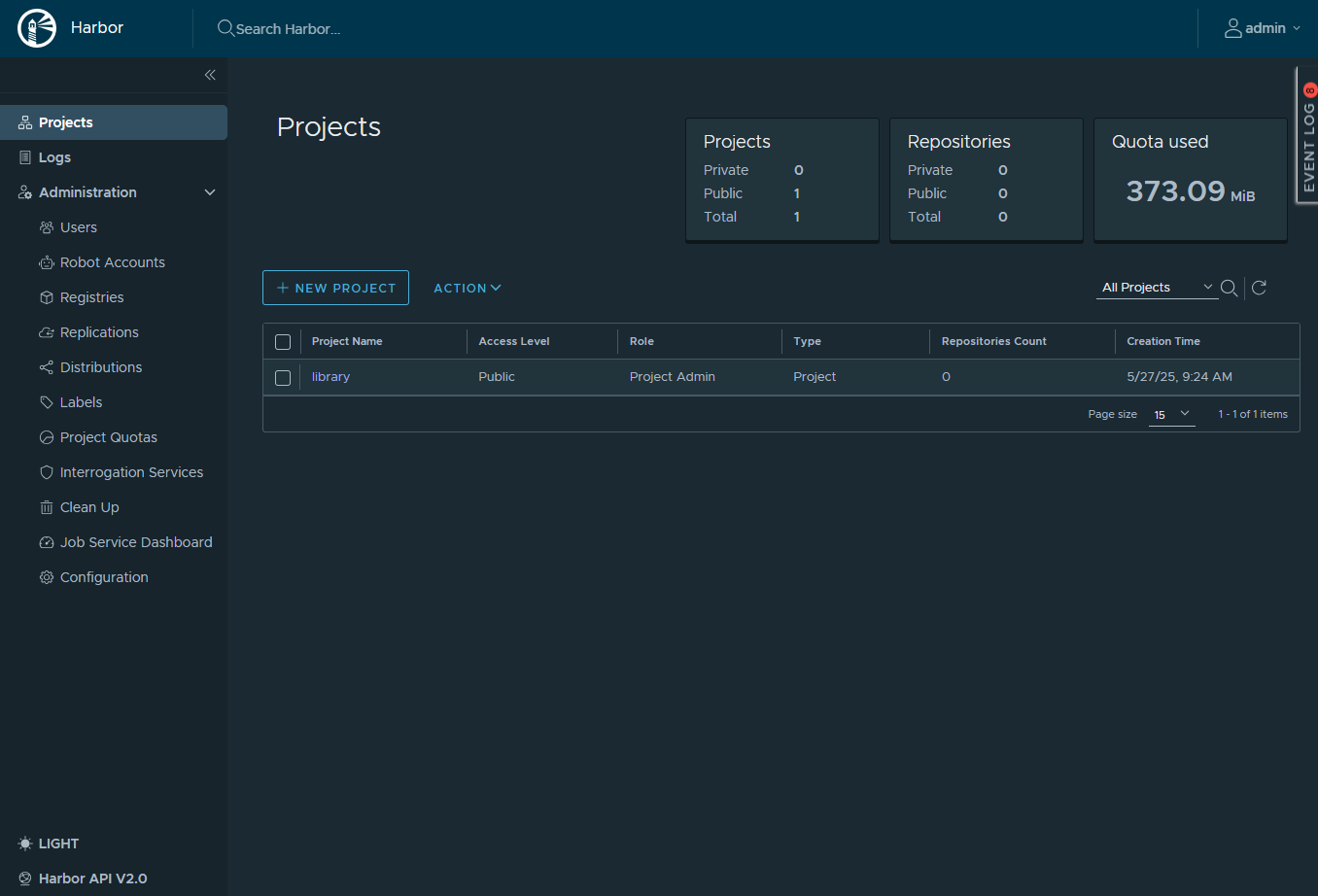
From there, you can log into Harbor projects page using the default admin user credentials:
Harbor project and user creation
Harbor manages container images through projects, each of which hosts the image repositories for your application. Before pushing images to Harbor, a project must first be created. A default public project named library is pre-created, but new projects can be created by clicking + NEW PROJECT:
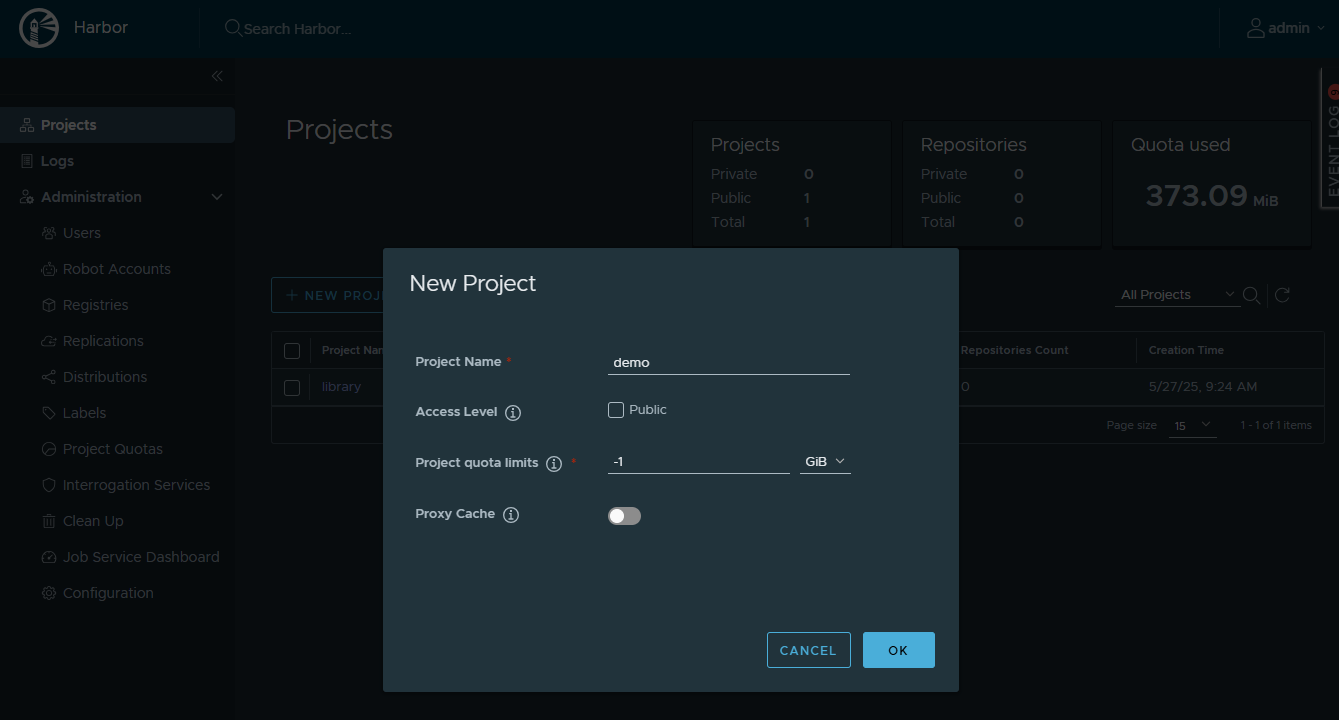
To enhance security, it's recommended to create private projects in Harbor to prevent unauthorized images pulls. In this blog post, a private project named demo is created with an unlimited quota (-1). For production environments, applying a defined quota, e.g., 200G, can help manage registry storage capacity more effectively.
After creating the project, users can be created and assigned to projects using role-based access control (RBAC). In this blog post, two sample users, pcai-developer, & pcai-admin, are created:
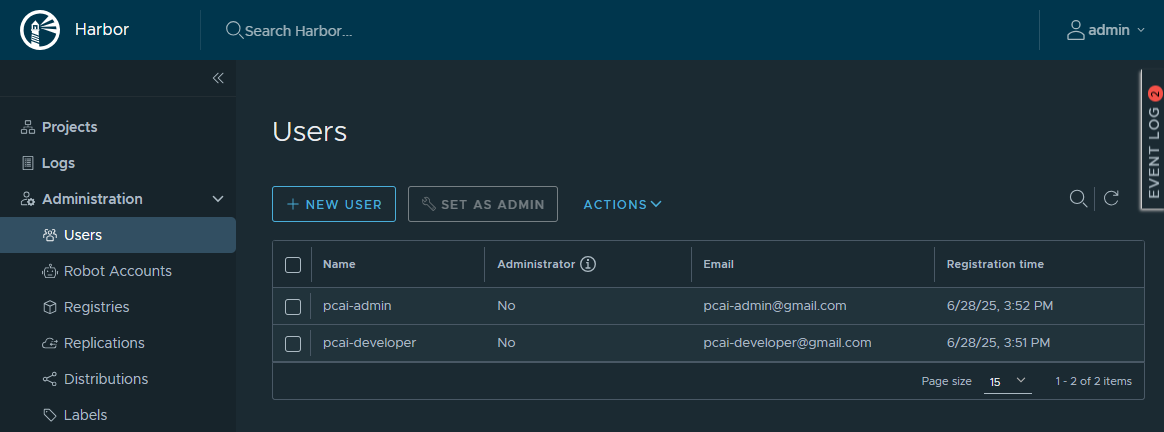
These users, along with the default admin user, are added to the project demo with distinct roles:
- pcai-developer has the Developer role (with read/write access to project)
- pcai-admin is assigned the Maintainer role, with extended privileges including image scanning, replication job visibility and image deletion
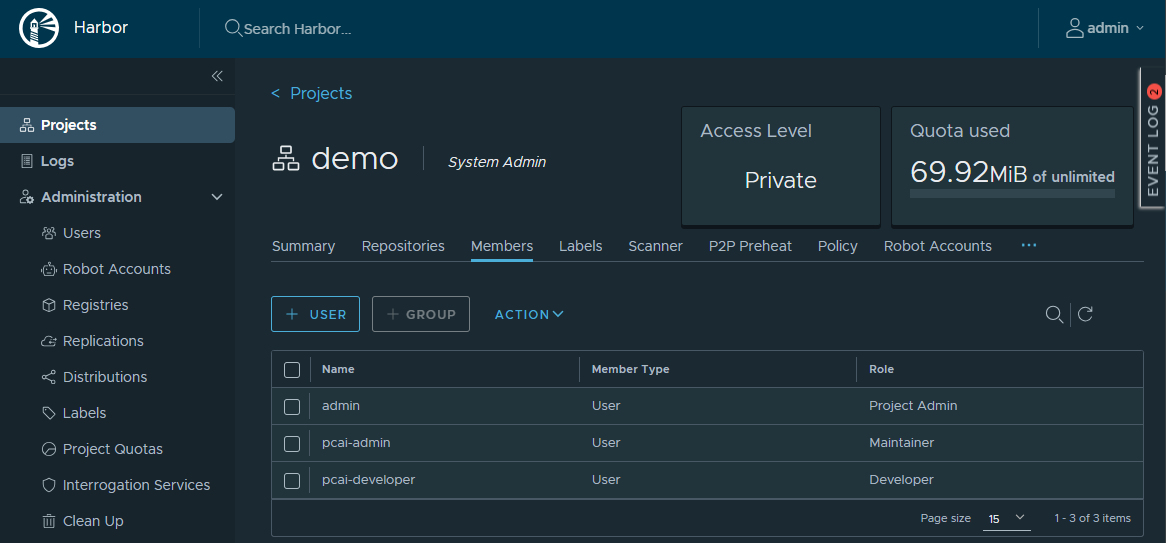
For a detailed breakdown of each role's capabilities, refer to the official Harbor Managing Users page. As a best practice, production deployments should enforce role separation to maintain security and operational clarity in Harbor.
Pushing images to Harbor registry
With the project and users set up, you're ready to push the container images to Harbor by following these steps:
- Log in to Harbor registry
Use the Docker client to authenticate with the Harbor registry using the pcai-admin user credentials by running the following command :
$ docker login harbor.ingress.pcai0104.ld7.hpecolo.net
Username: pcai-admin
Password:

WARNING! Your credentials are stored unencrypted in '/home/guoping/.docker/config.json'.
Configure a credential helper to remove this warning. See
https://docs.docker.com/go/credential-store/

Login Succeeded
If you get any certificate error when logging in from a Linux client, update the file /etc/docker/daemon.json by adding the following entry, replacing the Harbor registry URL with your own:
{
  "insecure-registries" : [" harbor.ingress.pcai0104.ld7.hpecolo.net "]
}
After making this change, reload the daemon and restart the Docker service:
$ sudo systemctl daemon-reload
$ sudo systemctl restart docker
- Tag an existing image
Rather than building a Docker image from a Dockerfile, pull the sample CFE Nginx image, 'pcaidemo/cfe-nginx', from DockerHub and tag it with the Harbor registry URL and project name:
$ docker images
REPOSITORY           TAG       IMAGE ID       CREATED        SIZE
pcaidemo/cfe-nginx   v0.1.0    1e5f3c5b981a   2 months ago   192MB

$ docker tag pcaidemo/cfe-nginx:v0.1.0 harbor.ingress.pcai0104.ld7.hpecolo.net/demo/cfe-nginx:v0.1.0

$ docker images
REPOSITORY                                               TAG       IMAGE ID       CREATED        SIZE
pcaidemo/cfe-nginx                                       v0.1.0    1e5f3c5b981a   2 months ago   192MB
harbor.ingress.pcai0104.ld7.hpecolo.net/demo/cfe-nginx   v0.1.0    1e5f3c5b981a   2 months ago   192MB
- Push the image to Harbor registry
Push the image to the Harbor registry by running the following command:
$ docker push harbor.ingress.pcai0104.ld7.hpecolo.net/demo/cfe-nginx:v0.1.0
The push refers to repository [harbor.ingress.pcai0104.ld7.hpecolo.net/demo/cfe-nginx]
7e893c1b6ee8: Pushed
463308bed0c9: Pushed
4197a611afec: Pushed
3e96162769d5: Pushed
892e805f6f4f: Pushed
626ab8a5d57b: Pushed
7fb72a7d1a8e: Pushed
v0.1.0: digest: sha256:114dff0fc8ee3d0200c3a12c60e3e2b79d0920dd953175ecb78a0b157425b25e size: 1778
- Verify the image from Harbor registry
From the Harbor UI, the image cfe-nginx appears under Repositories tab of the demo project:
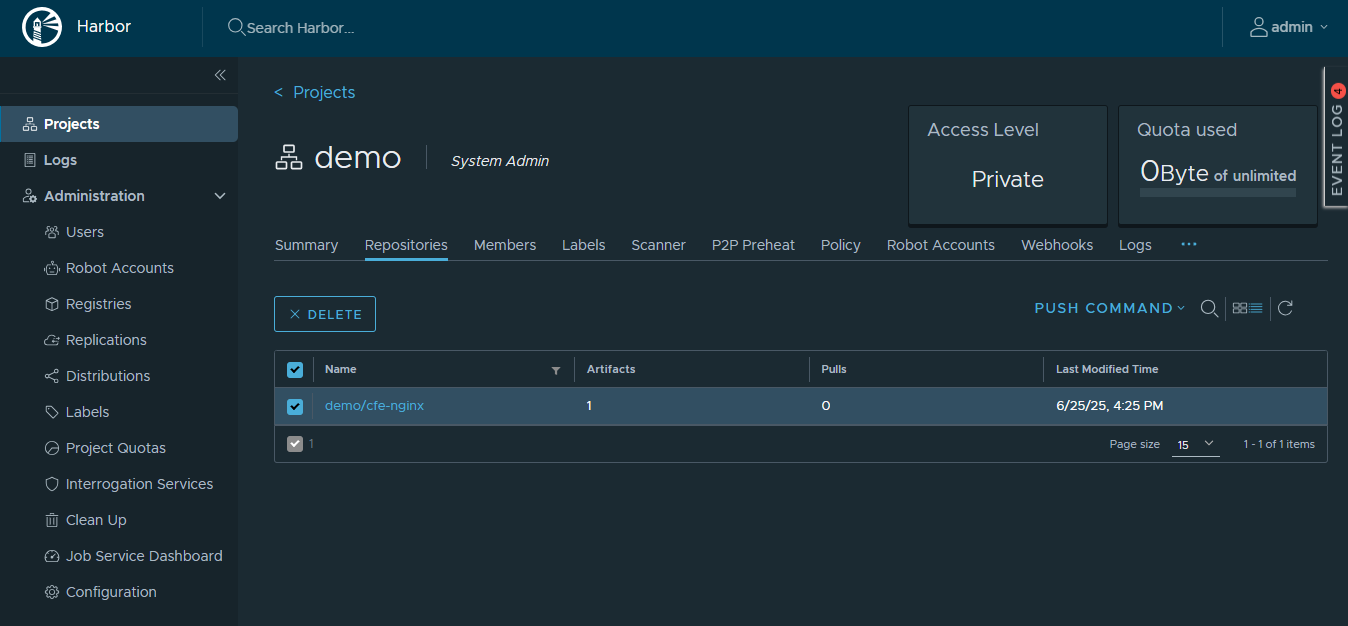
From the Docker client, log in to the Harbor registry as the pcai-developer user, then pull the image cfe-nginx from the registry. The image should download successfully, confirming that the user has appropriate access and the Harbor registry is functioning as expected.
$ docker login harbor.ingress.pcai0104.ld7.hpecolo.net
Username: pcai-developer
Password:

WARNING! Your credentials are stored unencrypted in '/home/guoping/.docker/config.json'.
Configure a credential helper to remove this warning. See
https://docs.docker.com/go/credential-store/

Login Succeeded

$ docker images
REPOSITORY   TAG       IMAGE ID   CREATED   SIZE
$ docker pull harbor.ingress.pcai0104.ld7.hpecolo.net/demo/cfe-nginx:v0.1.0
v0.1.0: Pulling from demo/cfe-nginx
b895f377d09e: Already exists
3b00567da964: Pull complete
56b81cfa547d: Pull complete
1bc5dc8b475d: Pull complete
979e6233a40a: Pull complete
d2a7ba8dbfee: Pull complete
32e44235e1d5: Pull complete
Digest: sha256:114dff0fc8ee3d0200c3a12c60e3e2b79d0920dd953175ecb78a0b157425b25e
Status: Downloaded newer image for harbor.ingress.pcai0104.ld7.hpecolo.net/demo/cfe-nginx:v0.1.0
harbor.ingress.pcai0104.ld7.hpecolo.net/demo/cfe-nginx:v0.1.0

$ docker images
REPOSITORY                                               TAG       IMAGE ID       CREATED        SIZE
harbor.ingress.pcai0104.ld7.hpecolo.net/demo/cfe-nginx   v0.1.0    1e5f3c5b981a   2 months ago   192MB
Application deployment using Harbor registry
With the container images pushed to the Harbor registry, the next step is to deploy the application to HPE PCAI using the same Import Framework. It will demonstrate how to pull images from Harbor.
The Helm charts of the sample CFE Nginx application are available from GitHub repository pcai-helm-examples. Alongside the required virtualService and Kyverno ClusterPolicy YAML files, the values.yaml file includes the imageCredentials section that specifies the Harbor access credentials for the pcai-developer user. It also references the imagePullSecrets field that uses the Secret resource harbor, which is created during deployment, to securely pull container images from the Harbor registry.
image:
  repository: harbor.ingress.pcai0104.ld7.hpecolo.net/demo/cfe-nginx
  pullPolicy: Always
  # Overrides the image tag whose default is the chart appVersion.
  tag: "v0.1.0"

imagePullSecrets:
  - name: harbor

imageCredentials:
  registry: harbor.ingress.pcai0104.ld7.hpecolo.net
  username: pcai-developer
  password: PCAIDev12345
  email: glcs.cfe@hpe.com
Using the provided sample Helm charts, the CFE Nginx application can be easily deployed to HPE PCAI via the Import Framework. After deployment, an Imported Nginx tile appears under Tools & Framework, along with its configured service endpoint:
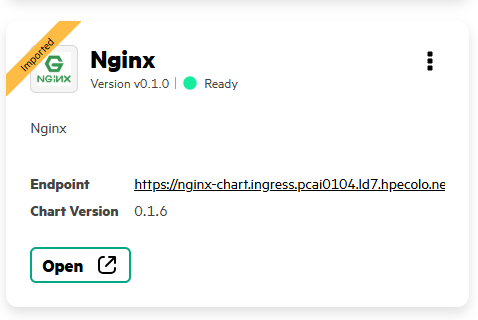
Clicking the Open button launches the CFE Nginx main page:

The CFE Nginx application is deployed to the namespace 'nginx' in the K8s cluster. If you have access to the cluster, you can verify the deployment by running the following command:
# kubectl get all -n nginx
NAME                               READY   STATUS    RESTARTS   AGE
pod/nginx-chart-546476cd99-2nqzz   1/1     Running   0          6s

NAME                  TYPE        CLUSTER-IP     EXTERNAL-IP   PORT(S)   AGE
service/nginx-chart   ClusterIP   10.99.78.114   <none>        80/TCP    6s

NAME                          READY   UP-TO-DATE   AVAILABLE   AGE
deployment.apps/nginx-chart   1/1     1            1           6s

NAME                                     DESIRED   CURRENT   READY   AGE
replicaset.apps/nginx-chart-546476cd99   1         1         1       6s
Within the 'nginx' namespace , a Secret named 'harbor', of type dockerconfigjson, is created. This secret is used to authenticate and pull images from the Harbor registry during the deployment of the CFE Nginx application:
# kubectl get secret harbor -n nginx
NAME     TYPE                             DATA   AGE
harbor   kubernetes.io/dockerconfigjson   1      3m41s
Type the following command to observe the cfe-nginx image, tagged v0.1.0, being pulled from the demo private project in Harbor registry:
[root@ez-master01 ~]# k describe pod/nginx-chart-546476cd99-2nqzz -n nginx
Name:             nginx-chart-546476cd99-2nqzz
Namespace:        nginx
...
...
Events:
  Type    Reason     Age    From                         Message
  ----    ------     ----   ----                         -------
  Normal  Scheduled  2m18s  scheduler-plugins-scheduler  Successfully assigned nginx/nginx-chart-546476cd99-2nqzz to scs04.pcai0104.ld7.hpecolo.net
  Normal  Pulling    2m18s  kubelet                      Pulling image "busybox"
  Normal  Pulled     2m17s  kubelet                      Successfully pulled image "busybox" in 860ms (860ms including waiting)
  Normal  Created    2m17s  kubelet                      Created container web-content
  Normal  Started    2m17s  kubelet                      Started container web-content
  Normal  Pulling    2m16s  kubelet                      Pulling image "harbor.ingress.pcai0104.ld7.hpecolo.net/demo/cfe-nginx:v0.1.0"
  Normal  Pulled     2m16s  kubelet                      Successfully pulled image "harbor.ingress.pcai0104.ld7.hpecolo.net/demo/cfe-nginx:v0.1.0" in 377ms (377ms including waiting)
  Normal  Created    2m16s  kubelet                      Created container nginx-chart
  Normal  Started    2m16s  kubelet                      Started container nginx-chart
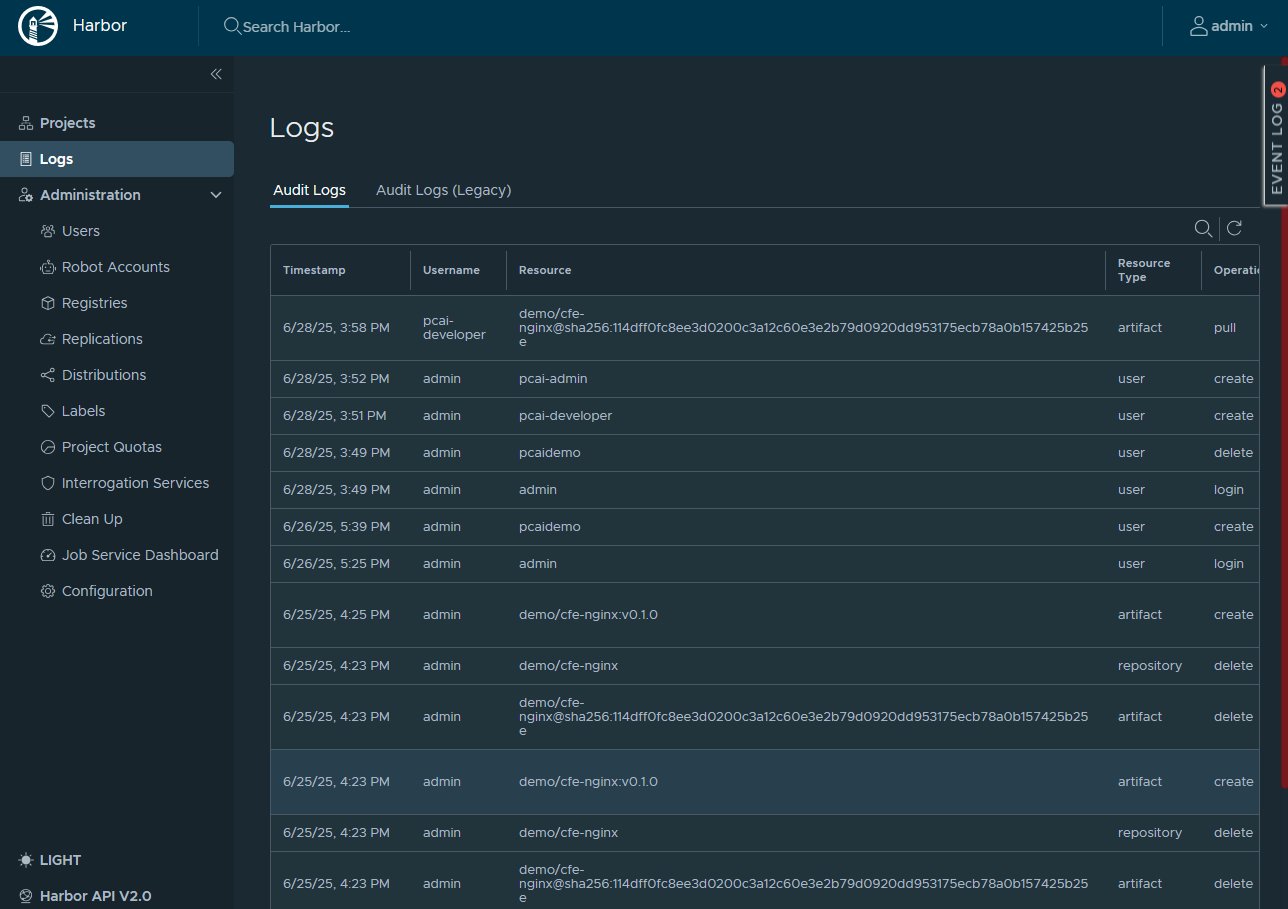
The Logs page of the Harbor UI provides a comprehensive audit trail, capturing key activities such as project and user creation, as well as image push and pull operations:
Conclusion
In this blog post, I explored how to deploy Harbor to HPE Private Cloud AI and configure it as a local container registry. By setting up a private Harbor project and assigning user roles, organizations can securely manage, push and pull container images tailored to their application needs.
More than just a container registry, Harbor strengthens security with built-in vulnerability scanning, image signing, and content trust features, ensuring only verified, compliant images are used across deployments. With Harbor integrated into HPE PCAI, organizations can confidently host container images internally, eliminating the need for external registries. The local container registry offers greater control over image provenance and aligns more effectively with organization security policies and regulatory requirements.
Please keep coming back to the HPE Developer Community blog to learn more about HPE Private Cloud AI and get more ideas on how you can use it in your everyday operations.
Tags
Related

Build your first AI Chatbot on HPE Private Cloud AI using Flowise and HPE MLIS
Jul 11, 2025Integrating Dagster as a modern data orchestration framework in HPE Private Cloud AI
Apr 19, 2026
Accessing HPE Ezmeral Data Fabric Object Storage from Spring Boot S3 Micro Service deployed in K3s cluster
Sep 13, 2021Automating application deployments to MKS clusters using GitOps with Argo CD
Jan 13, 2026
Deep Learning Model Training – A First-Time User’s Experience with Determined - Part 1
Apr 14, 2022Deep Learning Model Training – A First-Time User’s Experience with Determined – Part 2
May 3, 2022Provisioning Kubernetes clusters using app blueprint with Ansible integration in HPE Private Cloud Enterprise
Oct 3, 2025