
This article provides step-by-step instructions for using OpenCode to automate PR reviews with GitHub Actions and a model running on HPE Private Cloud AI. It also discusses a pitfall to avoid when deploying a model across multiple GPUs.
HPE Private Cloud AI
HPE Private Cloud AI (HPE PCAI) offers a comprehensive, turnkey AI solution designed to address key enterprise challenges, from selecting the appropriate LLMs to efficiently hosting and deploying them. Beyond these core functions, HPE Private Cloud AI empowers organizations to take full control of their AI adoption journey by offering a curated set of pre-integrated NVIDIA Inference Microservices (NIM) LLMs, along with a powerful suite of AI tools and frameworks for data engineering, analytics, and data science.
HPE Machine Learning Inference Software (MLIS) is an enterprise-grade solution designed to simplify the deployment, management, and monitoring of machine learning (ML) models at scale. It specifically targets the complexities of moving models from development into production, with a particular focus on large language models.
HPE AI Essentials (AIE) Software is the integrated software layer that provides the tools for building, deploying, and managing generative AI applications, including HPE MLIS.
Use Case
AI-generated code is everywhere, and PR reviews are becoming the new bottleneck. In this article, we introduce AI into the PR review process. AI can flag standard issues and check that coding standards are followed, allowing people to focus on more complex problems. For instructions on setting up an AI coding assistant, please refer to this tutorial.
Prerequisites
This tutorial assumes that the code and PRs to be reviewed are hosted on GitHub, so you need a GitHub account. You must also be the owner or maintainer of the repository where you want to introduce automated AI-based PR reviews. The repository can be public or private. If you use a private repository, keep in mind that the GitHub runner uses GitHub resources, and the free allowance is limited. To avoid unexpected costs, make sure that "Stop usage" is enabled for your GitHub account under Settings > Budgets and licensing > Budgets and alerts for the "Actions" product.
The AI model used in this tutorial is deployed on HPE PCAI. You will need either the model endpoint, model ID, and token for a model hosted on PCAI, or access to an HPE PCAI system with at least one free GPU. A Hugging Face account might also be required for model deployment.
Setup
Deploying a model on HPE Private Cloud AI
Several guides are available for deploying a model on HPE PCAI, including this guide and other HPE Developer Blog posts. For AI coding and PR reviews, however, you might want to use a model that does not fit on a single GPU available in HPE PCAI. This section highlights a pitfall and a new environment variable option in MLIS.
To deploy a model across multiple GPUs, select more than one GPU during packaged model creation in the Resources tab. Multi-GPU deployments rely on shared memory mounted at /dev/shm in the inference service container. Its default size of 64 MiB is often insufficient. Increasing the available memory is essential for a successful deployment. For this reason, AIE 2026-07 introduces the AIOLI_SHM_SIZE environment variable. You can set it either for your packaged model or during deployment creation. Specify the allocation as a Kubernetes quantity string (for example, 512Mi, 2Gi, or 4Gi).
If you are running an older version of AIE, you can still increase the size of /dev/shm, but the process is more manual and involves kubectl commands. You can run these commands from your terminal if you have the kubeconfig for your cluster. Alternatively, if you are deploying the model in your personal user project, you can run them in a terminal window in a Jupyter Notebook Server.
Create and deploy your packaged model. Once it is deployed, you will see an InferenceService in the namespace when you run kubectl get isvc. Identify the InferenceService for your model deployment and edit it with kubectl edit isvc <yourinferenceservice>. Add a volume and a volume mount at /dev/shm:
volumes:
- emptyDir:
    medium: Memory
    sizeLimit: 16Gi
  name: dshm
The volume needs to have the same indentation as tolerations or maxReplicas.
  volumeMounts:
  - mountPath: /dev/shm
    name: dshm
The volumeMounts section needs the same indentation as image, name, or ports within the kserve-container.
After updating the InferenceService, remove the old revision that uses the previous configuration. Identify it with kubectl get revision, then delete it with kubectl delete revision <yourrevisionname>. The updated InferenceService will create a new revision. Wait for the model to deploy; this may take some time. To check the deployment logs, identify your model's pod with kubectl get pods, then view its logs with kubectl logs <yourmodelpodname>.
Configuring OpenCode
To use OpenCode with a locally deployed model in GitHub Actions, you need an opencode.json file at the root of your GitHub repository. This configuration file defines the model's permissions and specifies which model to use. To create it, you need the model endpoint URL, model ID, and model token. You can find this information in AI Essentials under GenAI by selecting your model.
{
  "$schema": "https://opencode.ai/config.json",
  "provider": {
    "pcai": {
      "npm": "@ai-sdk/openai-compatible",
      "name": "MLIS",
      "options": {
        "baseURL": "DEPLOYMENT URL/v1",
        "apiKey" : "{env:MYPROVIDER_API_KEY}"
      },
      "models": {
        "DEPLOYMENT MODEL ID": {
          "name": "MODEL NAME DISPLAYED IN OPENCODE"
        }
      }
    }
  }
}
Replace the following values:
DEPLOYMENT URL/v1: Replace this with your model endpoint URL. Keep/v1at the end.DEPLOYMENT MODEL ID: Replace this with the complete model ID shown in GenAI Model Endpoints, for example,deepseek-ai/DeepSeek-V4-Flash-0731.MODEL NAME DISPLAYED IN OPENCODE: Replace this with the name you want to use for the model in OpenCode.
The apiKey in this configuration refers to an environment variable, which will be defined in the GitHub Actions workflow.
Configuring the GitHub Action
Your repository needs a review.yaml file. Add it under .github/workflows. This file defines the GitHub Actions review workflow.
name: opencode-review

on:
  pull_request:
    types: [opened, synchronize, reopened, ready_for_review]

jobs:
  review:
    runs-on: ubuntu-latest
    permissions:
      id-token: write
      contents: write
      pull-requests: write
      issues: write
    steps:
      - uses: actions/checkout@v6
        with:
          persist-credentials: false
      - name: Setup credentials to access private repositories
        run: git config --global url.https://${{ secrets.MY_PAT }}@github.com/.insteadOf https://github.com/
      - uses: anomalyco/opencode/github@latest
        env:
          MYPROVIDER_API_KEY: ${{ secrets.MYPROVIDER_API_KEY }}
          GITHUB_TOKEN: ${{ secrets.MY_PAT }}
        with:
          model: pcai/DEPLOYMENT MODEL ID
          use_github_token: true
          prompt: |
            Review this pull request:
            - Check for code quality issues
            - Look for potential bugs
            - Suggest improvements
            - comment it with yay this works
This configuration runs the review action whenever a PR is opened, synchronized, reopened, or marked as ready for review.
Replace the following values:
- DEPLOYMENT MODEL ID replace this with your Model ID as defined in opencode.json. It needs to be the complete model ID you find in GenAI Model Endpoints, like for example deepseek-ai/DeepSeek-V4-Flash-0731
Within jobs the job review is defined to run on ubuntu-latest. This defines the image used for the runner to execute this tasks. This configuration uses runners provided by GitHub.com. Usage is free for public repositories, while private repositories have a limited free allowance depending on your GitHub plan. A custom defined runner running locally is also possible, this can be VMs that are spinned up and down or Containers in a Kubernetes Cluster as described here.
The permissions section defines the permissions granted to the runner executing the action.
The steps section defines the tasks to be executed. If you are working in a public repository, you can remove the Setup credentials to access private repositories step.
The environment variables in the workflow need to be configured in the repository settings, as explained in the next section.
Adapt the prompt with the instructions you want the model to follow during its review.
Configuring the secrets
To avoid exposing your GitHub token or model token, store them as secrets. To create a secret, open your GitHub repository in a browser and navigate to Settings. Under the Security and quality section, go to Secrets and variables, then select Actions. Define the following repository secrets:
MYPROVIDER_API_KEY: The token for your model deployed on HPE PCAI. You can create a new token in AIE by navigating to GenAI > Model Endpoints, selecting your model, and clicking Create Token.MY_PAT: A personal access token created for your GitHub user under GitHub Settings > Developer settings. If you are using a fine-grained, repository-scoped token, remember to grant it access to the private repository.
Working with automatically triggered AI-based PR reviews
Once setup is complete, the defined action is triggered whenever a PR is opened, synchronized, reopened, or marked as ready for review. You can follow these runs by navigating to Actions in your GitHub repository. The opencode-review workflow will appear there, along with its individual runs and their success or failure status.
This is a sample AI-based PR review triggered by the configuration described in this blog post:
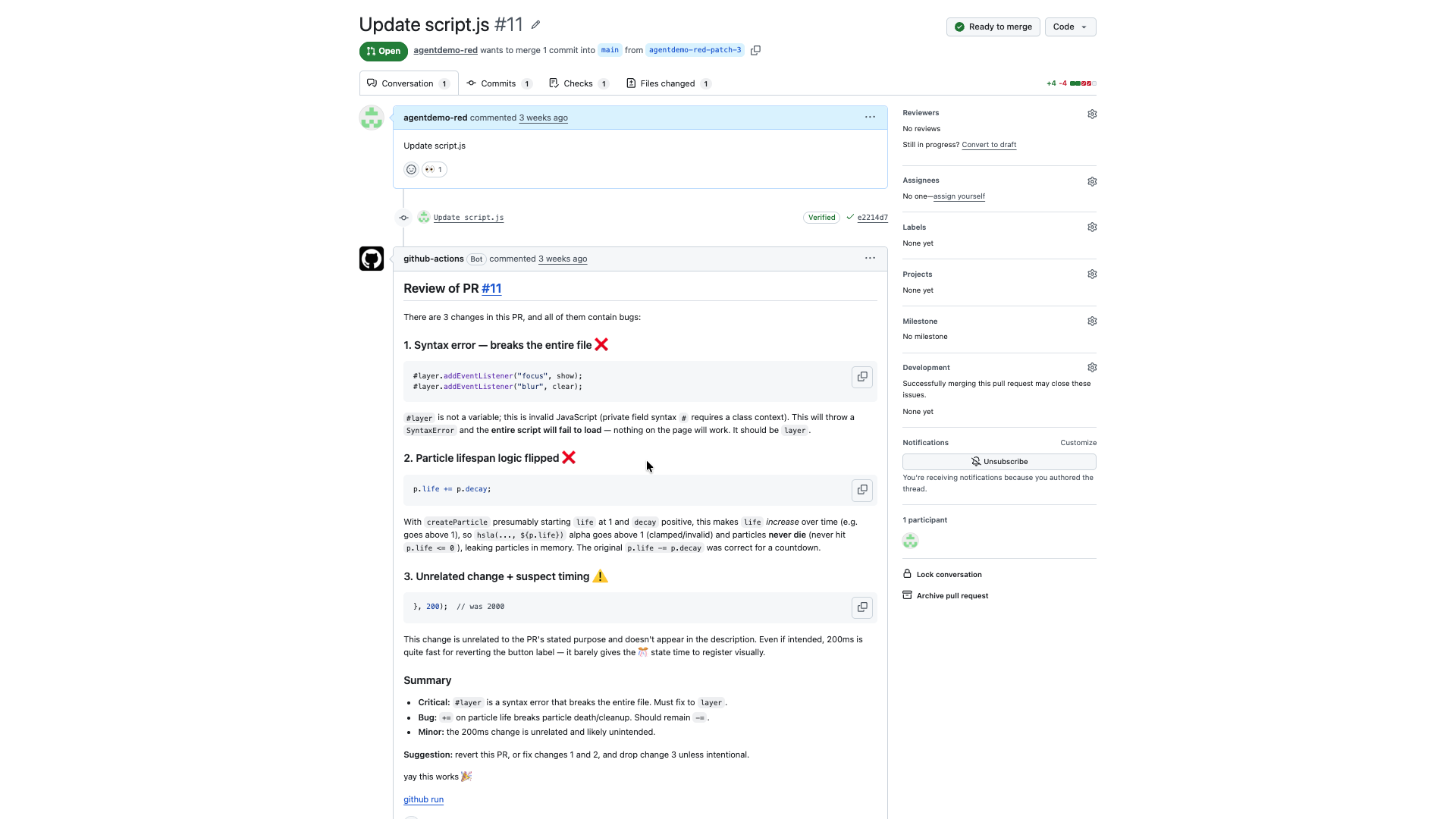
As instructed, the comment ends with "yay this works".
Credits
Credit where credit is due:
Tanguy Pomas - for documenting the AI coding assistant with OpenCode and working with me to figure out how to set up OpenCode in GitHub Actions to use a custom OpenCode configuration.
Stay tuned to the HPE Developer Community blog for more guides and best practices on using HPE Private Cloud AI for your AI use cases.
Related

Beyond generic AI: achieve contextual accuracy with HPE's Knowledge Bases
Apr 15, 2025Bring your agent to the next level - Introduce LiteLLM for MCP Cost management and Guardrails
Aug 26, 2026
Build your first AI Chatbot on HPE Private Cloud AI using Flowise and HPE MLIS
Jul 11, 2025
Getting started with Retrieval Augmented Generation (RAG)
Nov 14, 2024HPE Private Cloud AI: Build your first Agent
Jun 18, 2026
HPE Private Cloud AI: Natural Language to Structured Query Language
May 6, 2026
Implementing a local LLM using S3-based model storage and vLLM in HPE Private Cloud AI
Mar 17, 2026